

Minecraft Bedrock normally updates automatically, but store queues, limited storage, network problems or disabled automatic updates can leave a device on an older version. That can prevent you from joining friends, servers or Realms that already use a newer release.
Check Your Current Minecraft Version
- Launch Minecraft Bedrock.
- Read the version number shown in the lower-right area of the title screen.
- Open Minecraft's listing in your device's official store.
- If the store offers Update instead of Play, install the available release.
Players joining the same Bedrock world, Realm or server should use matching current versions. Preview and Beta builds are separate testing versions and may not connect to the stable release.
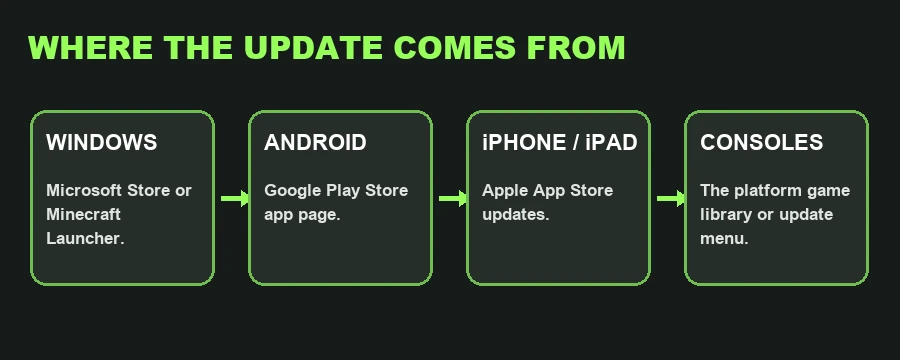
Update Minecraft Bedrock on Windows
- Close Minecraft and the Minecraft Launcher.
- Open the Microsoft Store.
- Go to Library and check for app updates.
- Install the Minecraft update if it appears.
- Open the Minecraft Launcher, select Minecraft for Windows and make sure you launch the latest stable release rather than Minecraft Preview.
Update on Android
- Open the Google Play Store.
- Search for Minecraft or open your profile and select Manage apps & device.
- Select Update beside Minecraft.
- Wait for installation to finish before opening the game.
If no update button appears, compare the version on Minecraft's title screen with the version shown in the Play Store listing. Store rollouts can take time to reach every device.
Update on iPhone or iPad
- Open the App Store.
- Select your profile picture.
- Refresh the available updates list.
- Choose Update beside Minecraft.
Update on Xbox, PlayStation and Nintendo Switch
Console editions receive updates through their platform store and game-management system. Highlight Minecraft in your game library, open the game's options menu and choose the available update or check-for-update command. Keep the console connected to the internet and allow the download to finish before starting Minecraft.
If the Update Does Not Appear
- Restart the store application and your device.
- Confirm that automatic updates are enabled.
- Check that the device has enough free storage.
- Use a stable internet connection and pause other downloads.
- Verify that you are signed into the account that owns Minecraft.
- Check whether the platform's services are experiencing an outage.
- Do not confuse the stable game with Minecraft Preview or Beta.
If Minecraft Still Shows the Old Version
Close the game completely instead of leaving it suspended, restart the device and open the official store listing again. On Windows, check both Microsoft Store updates and the Minecraft Launcher. On mobile devices, compare the title-screen version with the store's version history or app information.
Why Matching Versions Matter
Official Minecraft support identifies outdated or mismatched releases as a common reason players cannot join multiplayer games. The host and every joining player should update before troubleshooting accounts, permissions or networks.


