
The “Unable to Connect to World” message in Minecraft Bedrock can come from mismatched versions, multiplayer permissions, missing console subscriptions, host settings, account problems or a temporary service interruption. Use this checklist in order so you can identify the cause without changing unrelated settings.
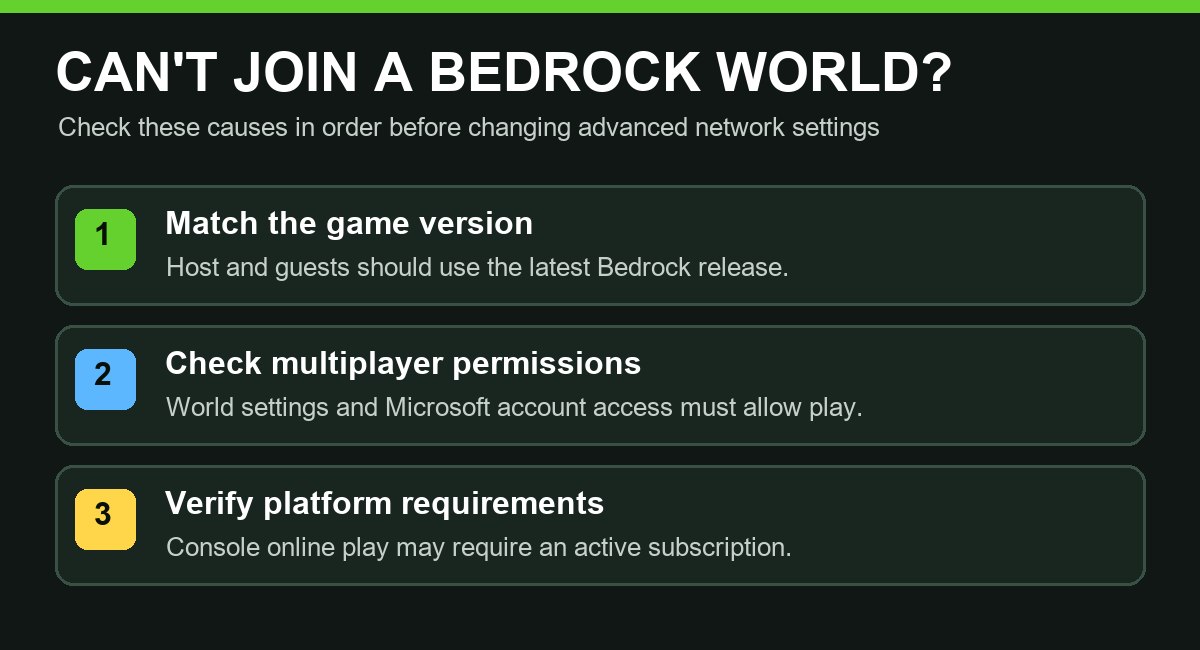
1. Make sure everyone has the same current version
An outdated game version is one of the most common connection problems. Update Minecraft on both the host device and the joining device. Avoid mixing the regular release with Preview or Beta builds, because those builds may not be compatible with normal worlds.
- Close Minecraft completely.
- Check the Microsoft Store, console store or mobile app store for updates.
- Ask the host to do the same.
- Restart the game and compare the version shown on the title screen.
2. Check the host world's multiplayer settings
The host must allow multiplayer in the world settings. From the Worlds list, select the pencil icon beside the world, open the Multiplayer section and make sure multiplayer is enabled. For local play, also enable visibility to LAN players.
The host must normally remain online and inside a directly hosted world. This does not apply to Realms, where invited players can join while the owner is offline.
3. Verify Microsoft account permissions
Bedrock multiplayer uses Microsoft account permissions. A child or family-managed account can show “Multiplayer is disabled” or fail to join when online play is blocked. An adult family organizer may need to allow joining multiplayer games and cross-network play.
4. Confirm console subscription requirements
Online multiplayer on consoles can require an active platform subscription. Minecraft Help currently lists Xbox Game Pass Core, PlayStation Plus and Nintendo Switch Online as requirements for the corresponding consoles. A subscription is usually unnecessary for local split-screen, but platform rules can vary by mode.
5. Check friends, invitations and account sign-in
For a friend's directly hosted world, both players should appear online and be Minecraft friends. The host starts the world, and the guest opens Play → Friends and chooses the host under Joinable Friends.
If the friend does not appear, confirm both players are signed into the intended Microsoft accounts. Signing out and back in can refresh authentication, but first close the game normally and make sure world saving has finished.
6. Test the network without unsafe shortcuts
Restart Minecraft and the device, then restart the router if other online services also have problems. Disable custom DNS or unusual port rules temporarily if you added them yourself. Do not download random “network fix” programs or expose ports without understanding the security impact.
| Symptom | Likely area to check |
|---|---|
| Only one friend cannot join | Version, friendship, account permissions or invitation. |
| Nobody can join the host | Host world settings, host connection or platform service. |
| LAN world is missing | Same network, LAN visibility and host world running. |
| Realm fails for everyone | Realm status, subscription or service outage. |
| Console multiplayer is blocked | Platform subscription and privacy permissions. |
7. Check official service status
If settings are correct and several players suddenly have the same problem, the issue may be outside your devices. Minecraft Help recommends checking Xbox service and PlayFab status for outages. Wait for the service to recover instead of repeatedly changing account or router settings.
8. Special checks for Realms
Confirm the Realm subscription is active, the Realm is open and your account is still invited. The game and Realm must use compatible versions. If the owner can enter but guests cannot, the owner can close and reopen the Realm through the official Realm management options.
What to include when asking for help
- Your platform and exact Bedrock version.
- Whether you are joining a friend, LAN world, server or Realm.
- The exact error message.
- Whether other players can connect.
- Whether vanilla worlds work when resource and behavior packs are disabled on a test copy.
Official sources: Troubleshoot unable to join multiplayer games, multiplayer requirements, and Bedrock LAN instructions.


